
1. Add your images
Open Lumo and choose Add images, or drop image files into the workspace. You can also paste an image you've copied. Start with a few photos to see how it works.
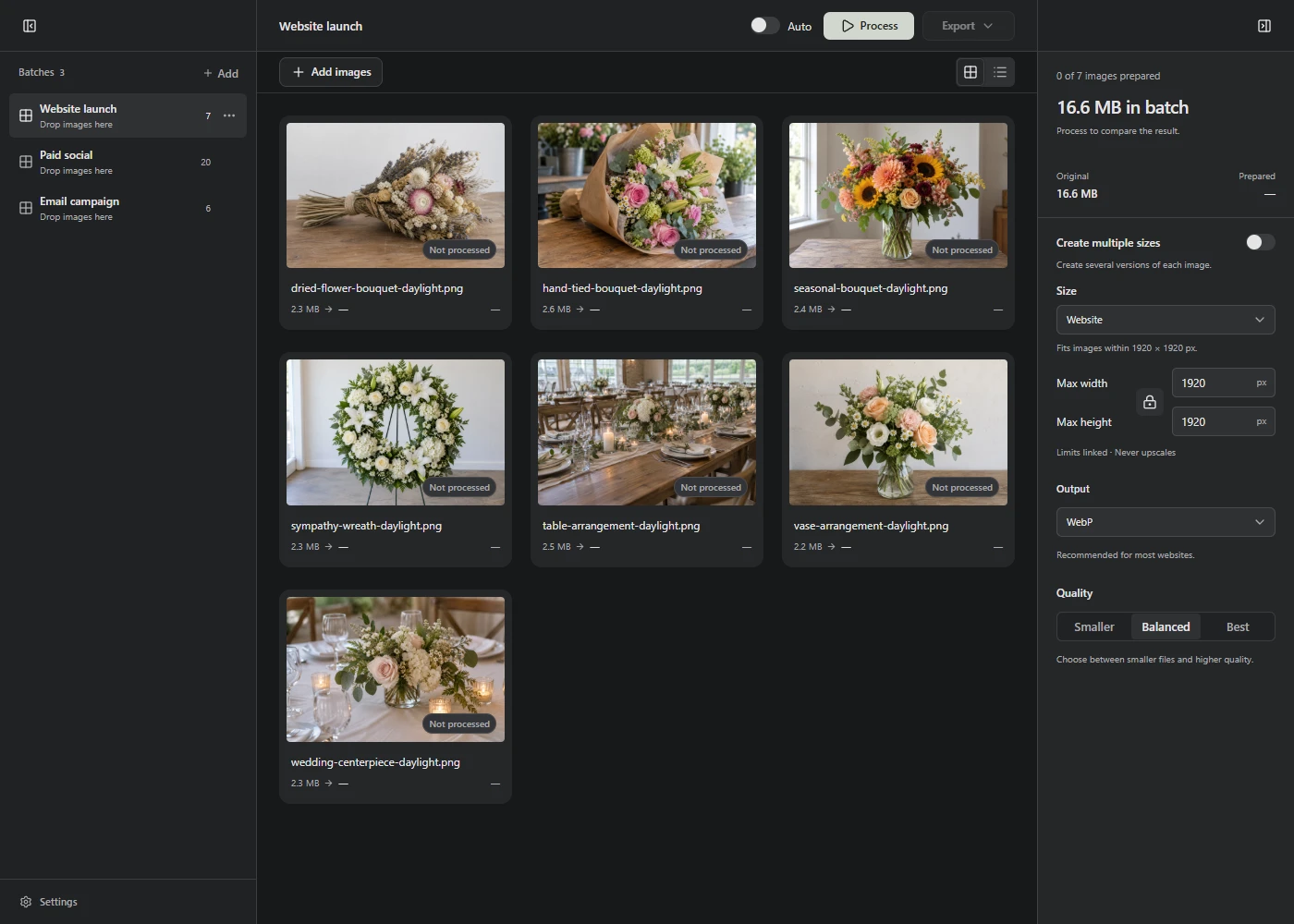
The images form a batch: a group you prepare together using the same settings. Adding them shows previews. Processing starts when you choose Process, unless you've turned on Auto.
2. Prepare them
For your first batch of photos, leave the settings as they are and choose Process. The default makes one WebP copy of each image, with a maximum width and height of 1,920 pixels. Smaller images aren't enlarged.
If your website asks for JPEG or PNG, choose that format under Output first. The settings in the right sidebar apply to the whole batch. On a smaller screen, open that sidebar using the toggle at the right of the top bar.
Need a particular size? Change Max width and Max height. These limits keep the image's proportions. You can leave one blank to limit only the other dimension.
These size and format settings apply to photos and other pixel-based images. SVG files follow their own optimization step and stay SVG.
3. Check the results
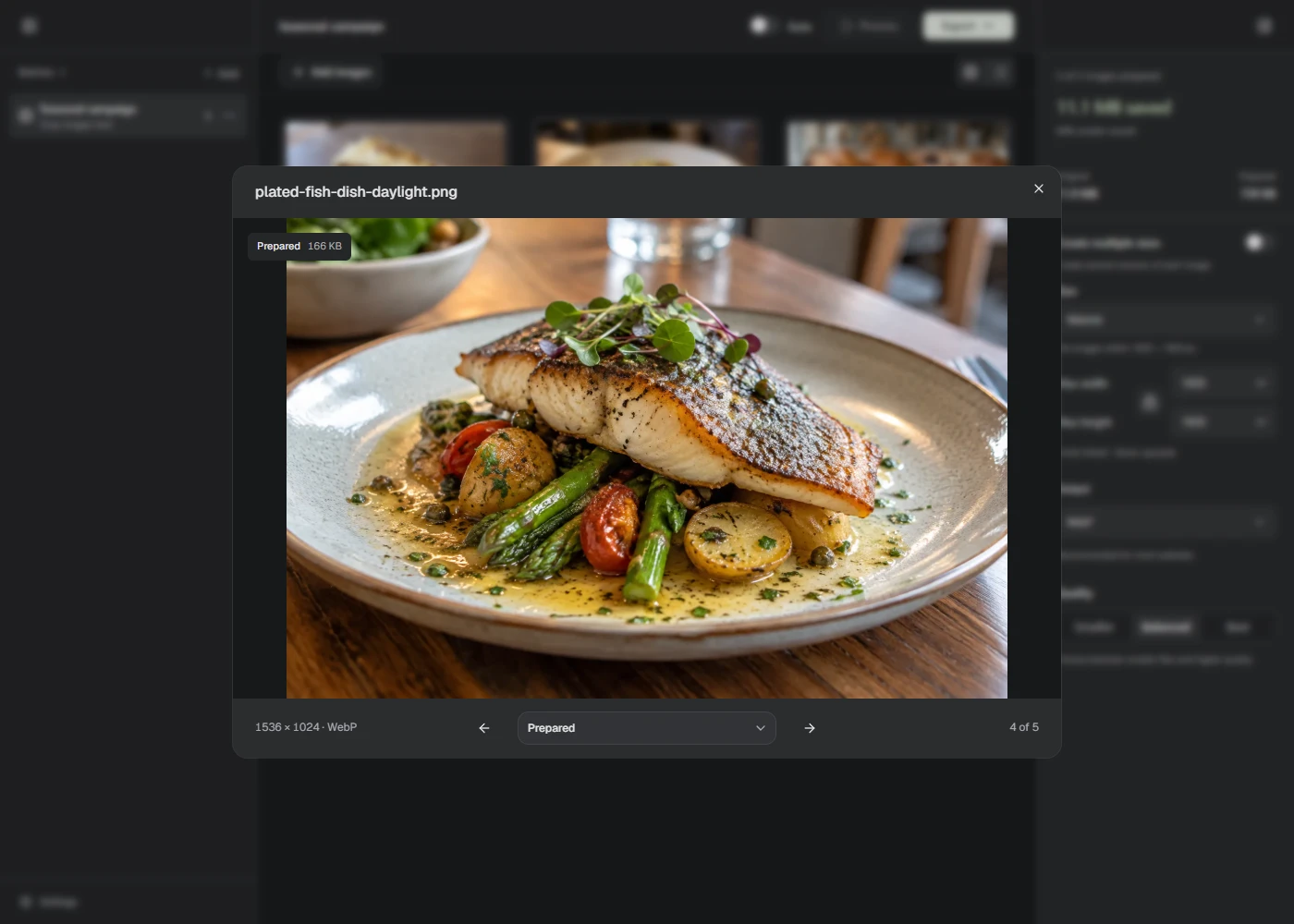
Open an image preview and switch between the original and prepared version. Check small details, edges, and any text in the image.
If the result looks too soft, try Best under Quality and choose Process again. If the file is still too large, try a smaller size or the Smaller quality setting. PNG uses lossless compression, so it doesn't have these quality choices.
4. Save your images
Choose Export. Use Download image for a single file or Download ZIP for several files. A ZIP keeps the results together; extract it before uploading the images to your website.
In a supported browser, Save to folder lets you choose a folder and give Lumo permission to save there. Downloads are available if folder access isn't supported.
Lumo saves prepared copies. Your original files stay unchanged. Upload the copies to your website or CMS when you're ready.
Keep separate jobs in separate batches
Choose Add in the batch sidebar, then Batch, to start another job. Use the batch's menu to rename it. You can switch between jobs without clearing their images or settings.
For example, keep large header photos in one batch and small product thumbnails in another. Each batch can have its own size and format.
For the next job, learn how to work with a local folder, save a set of output sizes, or choose the preparation settings.