

Choose Add → Folder to work with images in a folder on your device. Lumo reads the images, keeps their settings together, and saves prepared copies when you ask it to. Your originals stay unchanged.
Folder access needs a supported browser and your permission. If the picker isn’t available, use Add images and download the results, or open Lumo in Edge or Chrome.
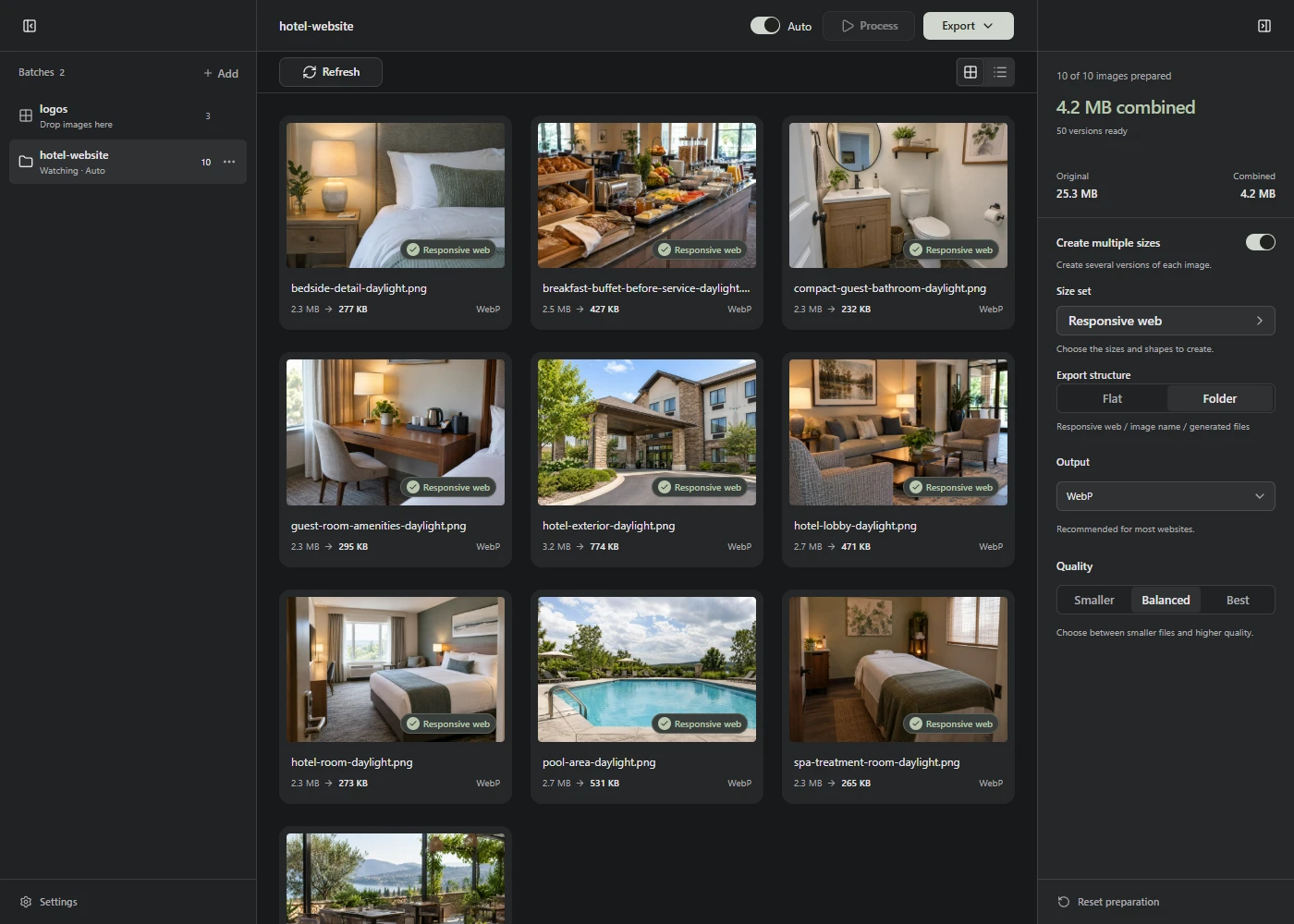
Prepare and save once
- Open the batch sidebar and choose Add → Folder. Select your source folder and allow Lumo to read it.
- Check the imported images. Lumo reads files directly in that folder, not its subfolders.
- Set the size, format, and quality in the right sidebar. These settings apply to all photos in this folder, including ones you add later.
- Choose Process, then inspect the results.
- Choose Save to optimized and allow saving when the browser asks. Lumo writes prepared copies into
optimizedinside your source folder.
On a smaller screen, use the panel buttons at either end of the top bar to open the batch and preparation sidebars.
Choose where copies go
Save to optimized creates an optimized subfolder inside your source folder. The Export menu also offers a download or Save to another folder…. After choosing another folder, you can reuse that named destination from the menu.
With multiple sizes enabled, Export structure → Folder groups files by output set and source image inside the destination. Flat keeps them together. See the export structure examples.
Lumo saves new copies and adds numbers when names are already taken. Wait for the saved confirmation before closing the app. If a save is interrupted, completed files stay on disk and the export menu offers a retry for the unfinished files.
Automatic saving always uses optimized, even if you previously chose another manual destination. The automatic processing guide explains how to turn it on.
Pick up new images
Watching starts when you add a folder. It checks for new filenames while Lumo is open and visible, including in folders other than the one you’re viewing. With Auto off, new images wait for Process.
Use the folder’s menu beside its name to Pause watching or Resume watching. Pausing discovery doesn’t stop images already being processed.
Watching pauses while Lumo’s tab is hidden and catches up when you return. It stops when you close Lumo. Subfolders, including optimized, aren’t scanned. Each folder accepts up to 100 images and 100 MB of source files.
Changed a file outside Lumo?
Choose Refresh to pick up changed, renamed, or removed source files. Watching finds new filenames; it doesn’t silently replace a photo you’ve already imported.
Unchanged images keep their prepared results. Changed images keep the folder’s settings but need Process again, even with Auto on. New filenames found by Refresh follow the folder’s Auto choice.
Return to a folder later
Switching folders keeps each job’s settings and results. Opening a folder that’s already in the sidebar returns to that job; use Refresh if you need to check its files again.
After reopening Lumo, restored folders start with watching and Auto paused. Choose Resume watching from the folder’s menu and allow access if asked. Turn Auto back on separately if you want it. If you see Needs attention, check that the folder is still available, then try Resume watching again. Prepared results remain available to download when folder access fails.
When you’re finished, choose Remove folder… from its menu. This removes the job and its recovery copy from Lumo. The source folder, originals, and saved copies stay on disk.