
Start with WebP for a website that accepts it. Use JPEG when your publishing tool needs it, PNG when you need lossless output, and try AVIF when you want to compare another compressed format.
Choose for the job
| Format | When to try it | What to check |
|---|---|---|
| WebP | Everyday website photos and images with transparency | Check the prepared detail and that your publishing tool accepts it. |
| AVIF | Photos where you want to compare file size with WebP | Check the result and allow more time for processing. |
| JPEG | Photos going into tools that require JPEG | It can’t keep a transparent background. |
| PNG | Screenshots, diagrams, and images where lossless output matters | Photo files can be large. Compare before choosing it for a gallery. |
Lossy compression reduces size by discarding some image information. Lossless compression preserves the pixels it encodes. Resizing still changes an image’s pixels, even if you save the result as PNG. MDN explains the underlying image format differences.
Change the format in Lumo
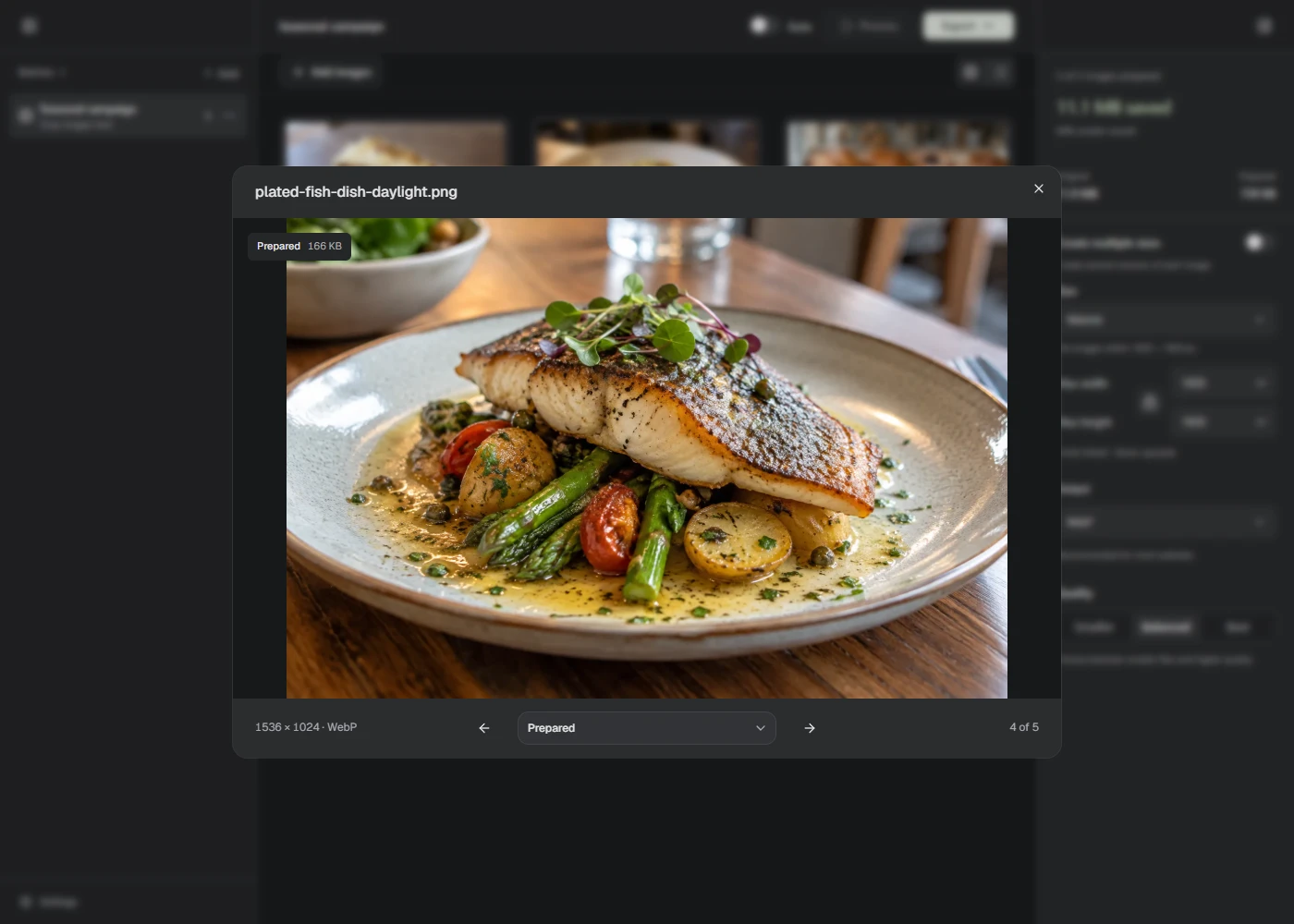
Open Output in the right sidebar and choose WebP, AVIF, JPEG, or PNG. The choice applies to every photo in the Batch. Choose Process, then open a result to inspect it.
For WebP, AVIF, and JPEG, start with Balanced quality. Try Smaller if you need to reduce the file size, or Best if detail is being lost. PNG uses Lossless and has no quality adjustment.
Lumo preserves transparent pixels in WebP, AVIF, and PNG. It won’t convert an image with transparent pixels to JPEG. Choose a format that keeps transparency, or add a solid background in an image editor first.
Input and output aren’t the same list
Lumo accepts still JPEG, PNG, WebP, supported HEIC/HEIF, and SVG files. It can create AVIF copies, but it doesn’t currently import AVIF files.
An SVG stays SVG when processed. Photo format and quality settings don’t convert it to another format.