

An output set tells Lumo which versions to make from each image. Save a set once, then reuse it for another Batch or Folder. A set can contain one output or several, such as a small card image and a larger detail image.
Use a built-in set
- Open the Batch or Folder you want to prepare.
- Turn on Create multiple sizes in the right sidebar.
- Open Size set. In the Output sets dialog, choose a set and check its outputs.
- Choose Use to apply it to the current Batch or Folder.
- Check Output and Quality in the sidebar. These apply to every version in the set.
- Choose Process, inspect the versions in an image preview, then Export.
If automatic processing is on, applying a changed set starts processing. With automation off, changes wait for Process.
Responsive web
Creates widths of 320, 640, 960, 1,280, and 1,920 pixels while keeping each image’s shape. Smaller originals aren’t enlarged. Read Create multiple image sizes for using the files on your website.
App & web icons
Uses PNG and fits each image inside square limits of 16, 32, 48, 76, 120, 152, 167, 180, 192, 256, 384, 512, and 1,024 pixels.
Start with a square image if you need square files. This set doesn’t crop a rectangular image into a square or add padding. It creates image files only; your website still needs its icon links and app settings. It doesn’t create ICO or SVG files.
Social essentials
Creates these centered crops:
| Output | Requested dimensions |
|---|---|
| Link preview | 1,200 × 630 px |
| Square post | 1,080 × 1,080 px |
| Portrait post | 1,080 × 1,350 px |
| Video thumbnail | 1,280 × 720 px |
| Story / reel | 1,080 × 1,920 px |
| Pin | 1,000 × 1,500 px |
Check that each crop keeps the subject. These are Lumo’s starting sizes; check the destination’s requirements before publishing.
Make your own set
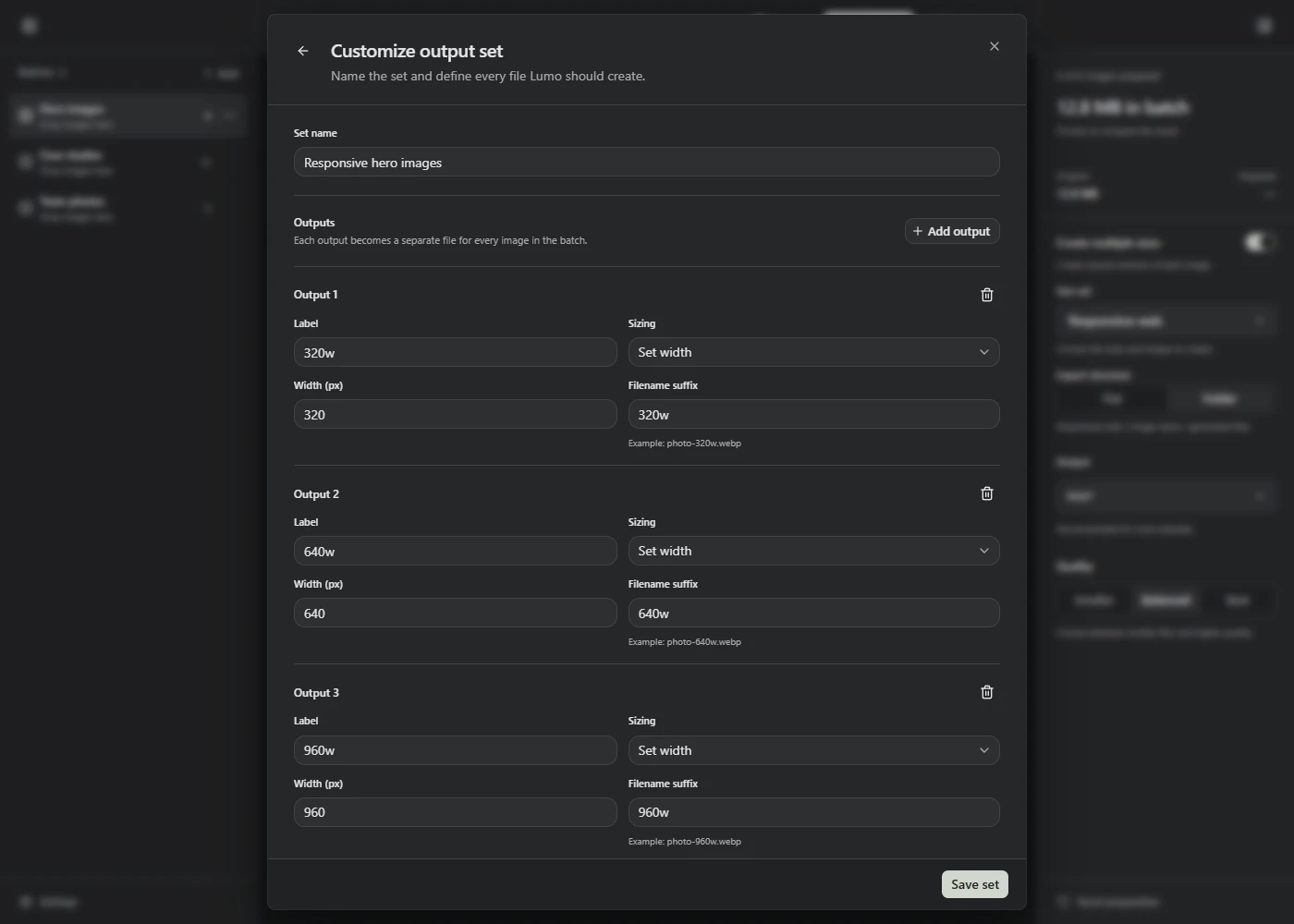
Choose New custom set in the Output sets dialog. To start from a built-in set, select it and choose Customize a copy instead.
Fill in these fields:
| Field | What to enter |
|---|---|
| Set name | A name you can find again, such as Shop images. It also names the outer folder when you use Folder export structure. |
| Label | A name for this version in Lumo, such as Card or Large. It doesn’t change the size or filename. |
| Sizing | How to resize this version. The four choices are explained below. |
| Width (px) | The requested width or width limit, depending on Sizing. Enter a whole number from 1 to 16,383. |
| Height (px) | The requested height or height limit, depending on Sizing. Enter a whole number from 1 to 16,383. |
| Filename suffix | The part added after the original name. For example, card produces chair-card.webp from chair.jpg when Output is WebP. Don’t include the file extension. |
The width and height fields appear only when the chosen sizing rule needs them. Set name, Label, and Filename suffix are required and can each contain up to 80 characters. Keep suffixes short and easy to recognize.
Choose Add output for another version. The bin button beside an output removes it. A set needs at least one output and can contain up to 24.
Changing a dimension doesn’t update its label or suffix. If you change a version from 1,200 to 800 pixels wide, check that those names still make sense.
Choose a sizing rule
| Sizing | What happens |
|---|---|
| Set width | Uses the requested width and adjusts the height to keep the image’s shape. |
| Set height | Uses the requested height and adjusts the width to keep the image’s shape. |
| Fit inside box | Fits the whole image within both limits. It doesn’t crop, stretch, or add padding. |
| Fill and crop | Crops from the center to match the requested shape. It doesn’t offer a movable crop position. |
None of these rules enlarge a small original. A result may therefore be smaller than the dimensions you entered, including a cropped result. Check the prepared dimensions when an exact size is required.
For example, a 1,600 × 1,000 photo with Fit inside box set to 800 × 800 becomes 800 × 500. The same source with Fill and crop at 800 × 800 becomes a square and loses content from its sides.
Save and apply it
Choose Save set to add it to Your sets and return to the chooser. Then choose Use to apply it. Saving the set alone doesn’t change the current Batch’s preparation settings.
Check the sidebar’s format after applying it. A copy of App & web icons keeps that set’s PNG choice. You can change Output afterward. All versions share the current Batch’s format and quality; a set doesn’t give each version its own format or quality control.
If the set won’t save, check that every required name and suffix is filled in and each dimension is a whole number within the allowed range.
Edit or remove a saved set
Choose a set under Your sets, then Edit set. Change the fields, choose Save set, and choose Use to apply the revision to the current Batch or Folder.
Other Batches keep the version they were given. Open each one and apply the revised set if you want them to change too.
Delete set removes a saved set after confirmation. Batches already using it keep their settings. Built-in sets remain available and can be changed by making a copy.
Custom sets are saved in this browser on this device. Clearing browser data can remove them. The library keeps the 20 most recently saved sets; saving another removes the oldest saved entry from the library. Batches using that older set still keep their copy.
Check the generated files
Lumo skips outputs that would have the same final dimensions. A small source can therefore produce fewer files than the set lists. For Set width, if the source is narrower than requested, Lumo uses its actual width in the label and suffix, such as 600w.
Choose Flat or Folder under Export structure to arrange the saved files. This choice belongs to the Batch or Folder, separately from its size set. See the preparation settings reference for an example of each.