

The right sidebar controls how Lumo prepares the current Batch or Folder. Its settings apply to every photo there and to photos you add later. Open another Batch when a group needs different settings.
A new Batch starts with one WebP version, Balanced quality, and maximum width and height of 1,920 pixels. Processing waits until you choose Process, unless you turn on automation.
Create multiple sizes
Leave Create multiple sizes off to make one prepared copy of each photo. The sidebar shows Size, Max width, and Max height.
Turn it on to use an output set. The single-copy size controls are replaced by Size set and Export structure. Each output in the set defines one requested version. Turning it off returns to the single-copy size settings.
Size
| Choice | What it does |
|---|---|
| Website | Sets both maximum dimensions to 1,920 pixels. The image fits inside that box and keeps its shape. |
| Original size | Removes both size limits. Compression and format conversion can still change the file. |
| Custom | Uses the width and height limits you enter. Editing either field switches Size to Custom. |
These choices don’t crop, stretch, or enlarge a photo. For example, a 3,000 × 2,000 image using Website becomes 1,920 × 1,280. A smaller original keeps its dimensions.
Max width and Max height
Each field accepts a whole number from 1 to 16,383 pixels. Leave a field blank for No limit on that dimension. Press Enter or leave the field to apply a value. Press Escape while editing to restore its previous value.
With both limits filled in, Lumo fits the image inside the box. Either limit can determine the final size. A tall image can reach Max height before it reaches Max width.
For a width-only limit, leave Max height blank. For a height-only limit, leave Max width blank. If a value is invalid, Lumo keeps the previous limit and shows a message.
The lock beside the dimensions
The lock links the two limits so they change together. With limits of 1,200 × 800 locked, changing the width to 600 changes the height to 400.
Both fields need numbers before you can lock them. Clearing either linked field clears both and turns the lock off. If an edit would make the other limit too small or too large, Lumo keeps the previous limits.
The lock starts off. It links the limits, not the shapes of your photos. Photos keep their own proportions whether the lock is on or off.
Size set
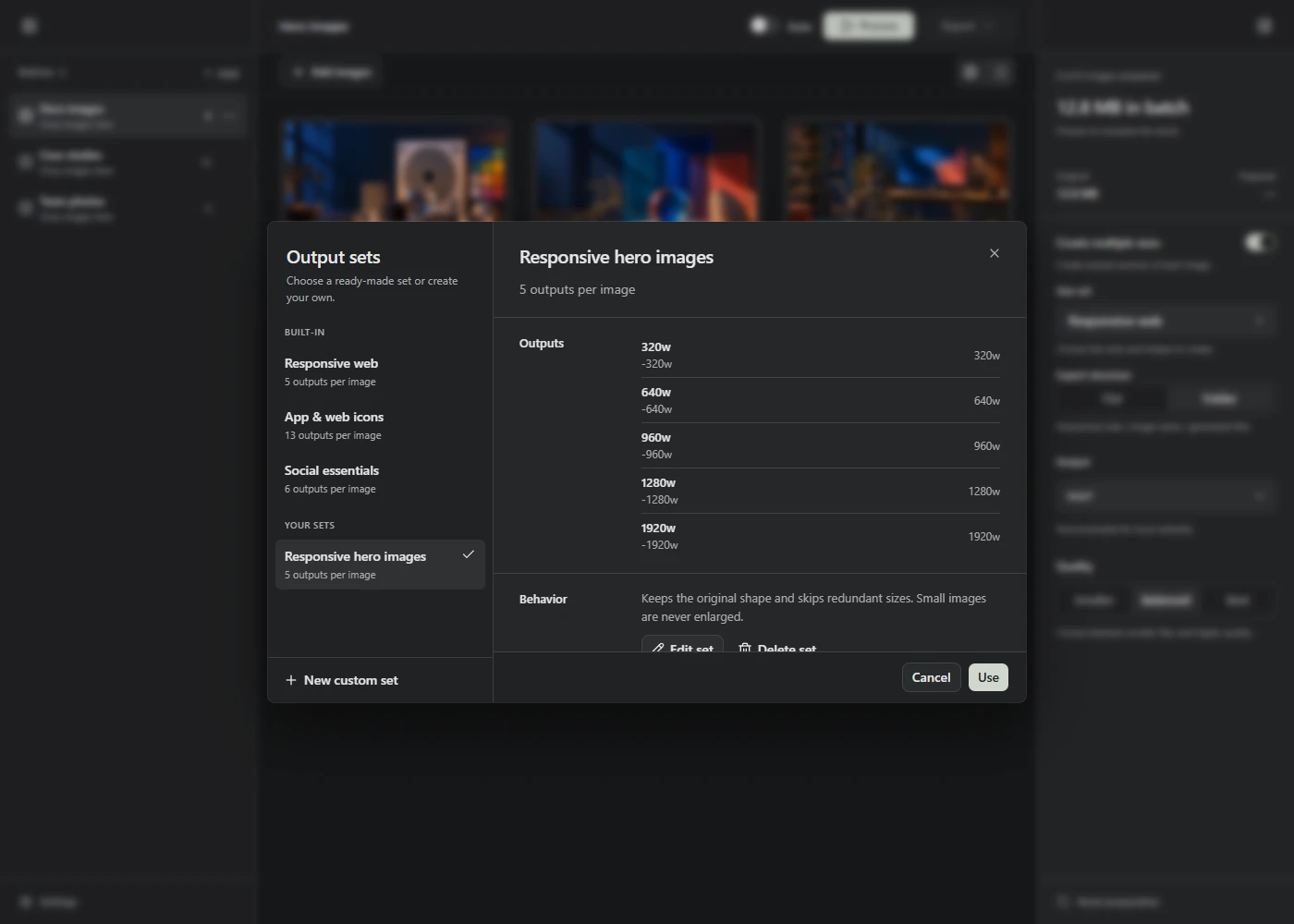
Choose Size set to open Output sets. Select a built-in or saved set, inspect its outputs, then choose Use. You can also create a custom set or edit a saved one.
Small originals aren’t enlarged, and outputs with the same final dimensions are skipped. You may get fewer files than the set lists. Read Create and reuse output sets for every set field, sizing rule, and built-in option.
Export structure
This control appears when Create multiple sizes is on. It arranges the generated files when you download or save them.
| Choice | Example for a set named Shop images and a source named chair.jpg |
|---|---|
| Flat | chair-card.webp and chair-large.webp together in the destination. |
| Folder | Shop images/chair/chair-card.webp and Shop images/chair/chair-large.webp. |
The sidebar shows the folder pattern when Folder is selected. The choice applies to ZIP downloads, chosen destinations, and a source folder’s optimized destination. A grouped download uses a ZIP even if it contains only one file.
Changing the structure doesn’t require processing again. It doesn’t change the saved output set or choose a destination. Use Export for that. Existing names get numbered copies when needed.
Output
Choose the format of prepared photos:
| Format | What to know |
|---|---|
| WebP | The default. Keeps transparency and offers quality choices. |
| AVIF | Keeps transparency and offers quality choices. Compare the result if you’re trying to reduce file size. |
| JPEG | Offers quality choices but can’t keep transparency. Lumo rejects photos with transparent pixels for this format. |
| PNG | Uses lossless compression and keeps transparency. There is no adjustable quality setting. |
The choice applies to all photo outputs in the current Batch or Folder. Applying App & web icons sets the format to PNG. Check Output after switching sets, especially when returning from icon work.
For help choosing a format, read WebP, AVIF, JPEG, or PNG.
Quality
| Choice | When to use it |
|---|---|
| Smaller | Try it when file size matters. Check whether the lost detail is noticeable. |
| Balanced | The default and a starting point for comparing results. |
| Best | Try it when the prepared image loses detail you need. Files may be larger. |
| Lossless | Shown for PNG. There are no quality buttons for this format. |
Quality applies to every prepared photo version in the current Batch or Folder. It doesn’t promise a particular file size or an exact match to the original. PNG preserves the pixels it encodes, but resizing still changes those pixels.
Reset preparation
Reset preparation appears at the bottom of the sidebar when preparation settings differ from the defaults. It restores WebP, Balanced, the Website size limits, and one copy per image. The selected size set returns to Responsive web, with multiple sizes turned off.
Choose Undo in the reset message if you want the previous settings back. Reset doesn’t delete your images or saved custom sets. Export structure and automation are separate controls and aren’t reset by this button.
When changes take effect
With automation off, choose Process after changing settings. Lumo prepares the images whose results need to change. Adding an image or opening a preview doesn’t start processing on its own.
For a file Batch, Auto-process processes pending images and changes but doesn’t save them automatically. For a Folder, Auto-process & save prepares and saves copies to optimized after you grant permission. Keep Lumo open and visible for automatic folder work. See the folder guide for the full workflow.
Read the result summary
The top of the sidebar shows how many images are prepared. For a single version, it compares original and prepared file sizes and reports when the result is larger. During processing, the comparison covers the finished images.
For multiple sizes, Combined means the total size of the prepared versions. It isn’t a claim about how much one website visitor will download. Open a preview to inspect each version’s dimensions and file size.
If the controls are unavailable
SVG files use a separate optimization step and stay SVG. Photo size, format, quality, and output-set controls don’t change them. Those controls are disabled in an SVG-only Batch. In a mixed Batch, they apply to the photos.
EXIF and GPS metadata aren’t copied to prepared photo outputs. There isn’t a setting to keep them, so retain the originals if you need that information.