
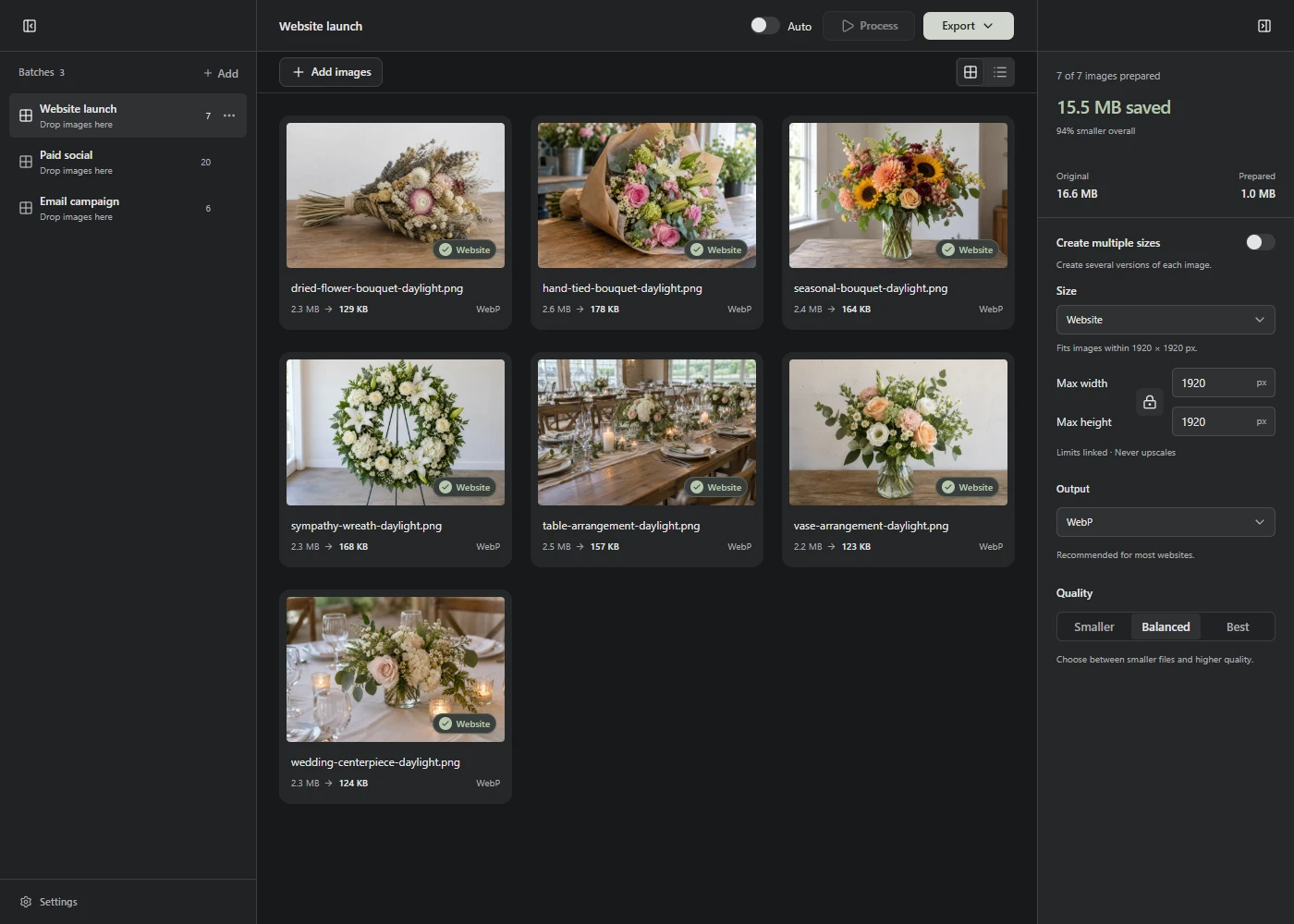
Put the images in one Batch, set Max width and Max height, then choose Process. Lumo fits each image inside those limits while keeping its shape. It doesn’t enlarge smaller originals.
Set the limits
- Choose Add images and add the files you want to resize together.
- Keep Create multiple sizes off to make one copy of each image.
- Set Max width and Max height in the right sidebar. Press Enter or leave the field to apply a value.
- Choose Process, check the dimensions in a preview, then Export the results.
Leave a limit blank when you don’t need it. For example, a maximum width of 1,200 pixels with no height limit makes wide images no wider than 1,200 pixels, whatever their shape.
A maximum size isn’t a crop
With both limits set to 1,200 pixels, a 2,400 × 1,600 photo becomes 1,200 × 800. A 1,600 × 2,400 portrait becomes 800 × 1,200. Neither becomes a square.
The lock beside the fields links the two limits so they change together. Images keep their own proportions whether that lock is on or off.
If your layout needs a square crop, use a custom size set with Fill and crop. That crops from the center, so check that the subject still fits. See the product image guide for that workflow.
Keep different jobs separate
The settings apply to every photo in the current Batch, including files you add later. Use Add → Batch for another group with different dimensions.
Each Batch accepts up to 100 files and 100 MB of source files. Split larger jobs into smaller groups. See Help for the individual file limits.
If you need several widths from each original, turn on Create multiple sizes and follow the responsive image guide.