

Prepare a clear image at a useful size, give it a descriptive name, and explain it where it appears on your page. Lumo handles the image files. Your website or publishing tool handles alt text, placement, and how the browser loads them.
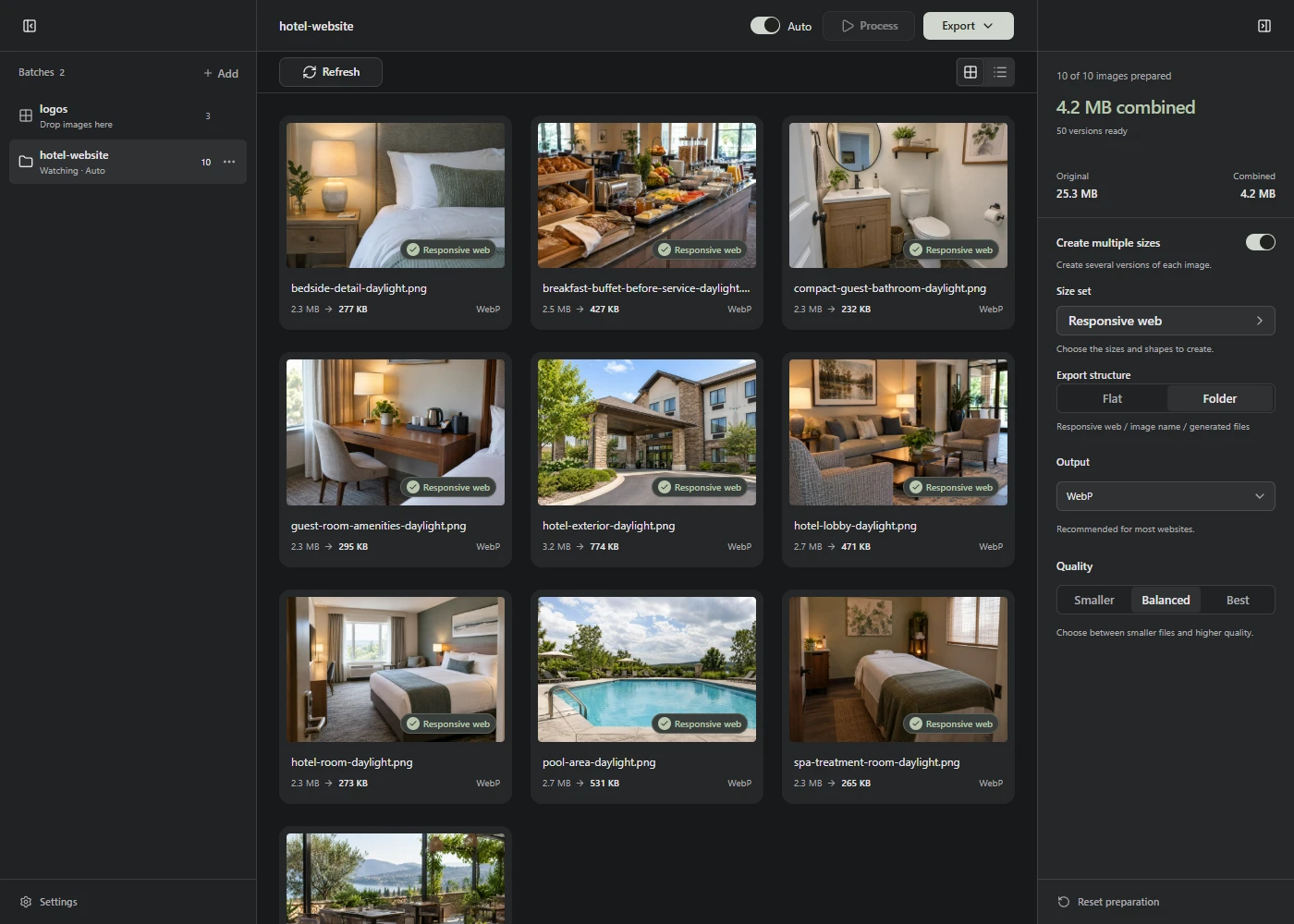
Check the files in Lumo
- Dimensions fit the job. Don’t use a camera-sized original for a small card. Check the size guide if you need a starting point.
- The result still shows useful detail. Open the prepared version and compare it with the original.
- The format works in your publishing tool. Check its upload requirements before preparing a whole batch.
- You saved the prepared copies. Use those files for publishing and keep the originals for future edits.
Check names and descriptions on the page
Use a short filename that describes the picture, such as oak-dining-table.webp. Avoid a list of search phrases. You can rename a copy before adding it to Lumo or rename the exported file afterward.
Write alt text for the image’s purpose in that page. For a product photo, Oak dining table with six chairs may be useful. Put the image near the text it supports. Google recommends descriptive filenames and helpful alt text without keyword stuffing. Read Google’s image guidance.
If an image is only decoration and adds no information, an empty alt attribute, alt="", lets assistive tools skip it. W3C’s decorative image guidance explains when this fits. Don’t add a description just to repeat the page’s keywords.
Check delivery on the website
- The image loads on the published page. Test the page outside your editor and check for missing files.
- Responsive images are connected. If you exported several widths, your site needs to choose among them. See responsive images.
- Space is reserved for the image. Set matching
widthandheightattributes, or let your website builder do so, to help avoid layout shifts as it loads. Web.dev explains image dimensions and layout shifts. - The opening image isn’t held back. Check the hero image guide before applying lazy loading to every image.
Finally, read the page and look at its images on a phone. Check that each image helps someone understand the content. Smaller files and accurate descriptions are useful work, but they don’t guarantee a search ranking.