

Start with the space the image fills on your page. A small card and a full-width header don’t need the same file. If your website builder gives you required dimensions, use those first.
Work from the displayed width
An image shown 600 pixels wide can use a 1,200-pixel source for a display that draws two image pixels for each page pixel. That’s a useful starting point to test, not a rule to double every image. Web.dev explains display density and image size.
These examples assume that same 2× density:
| Space on the page | Example displayed width | Source width to try |
|---|---|---|
| Small card | 320 px | 640 px |
| Article column | 640 px | 1,280 px |
| Wide content image | 960 px | 1,920 px |
Check the actual page on a phone and a larger screen. If the image grows beyond those example widths, choose a larger source or provide several sizes.
Set the size in Lumo
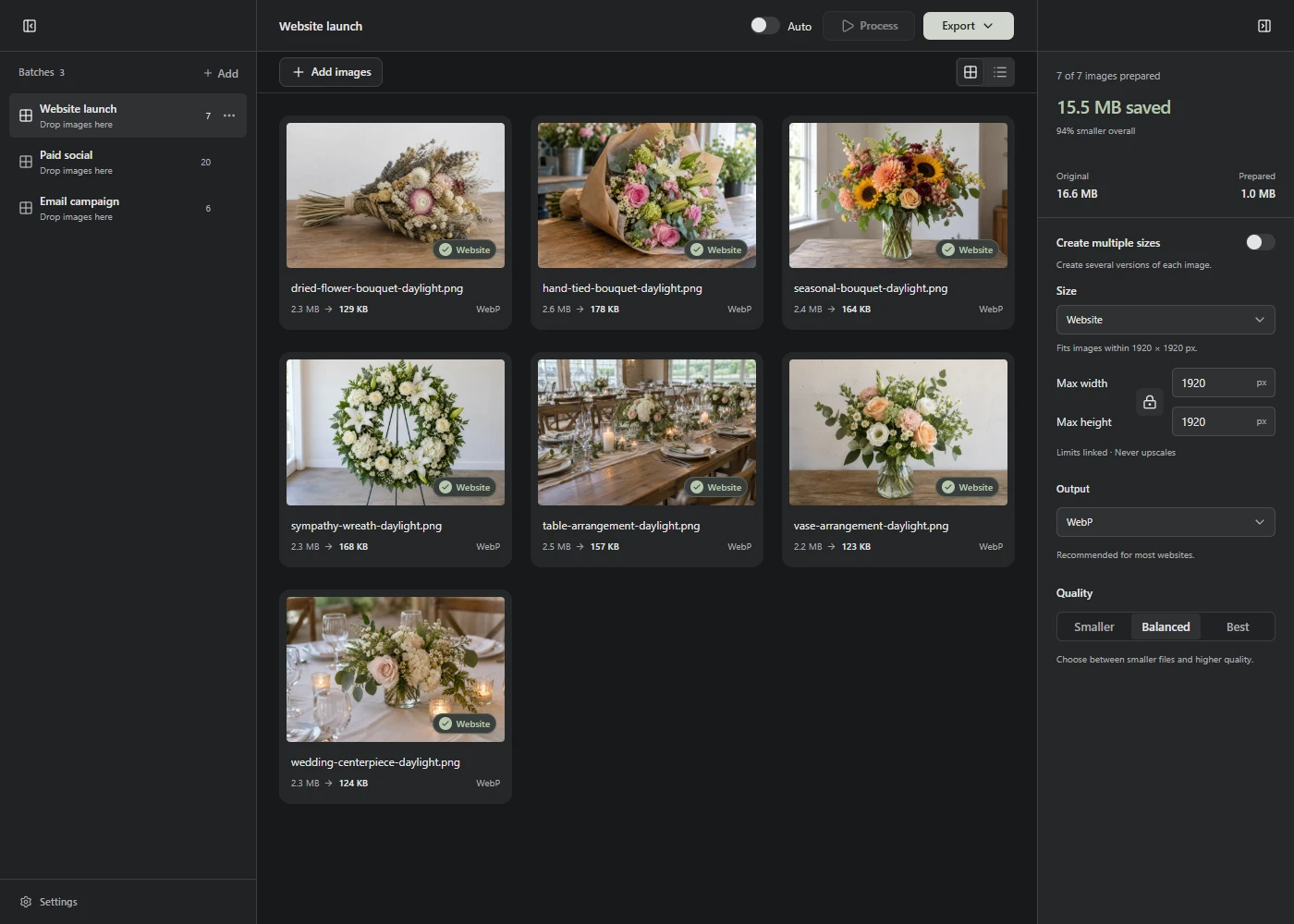
Use Max width for a width limit. Leave Max height blank if you want the width to be the only limit. Otherwise, a tall image may reach the height limit first and come out narrower than you expected.
The Website preset fits images inside 1,920 × 1,920 pixels. Original size removes both limits. Neither setting enlarges a small original.
Dimensions and file size are different things. Dimensions describe the pixel grid, such as 1,200 × 800. File size describes the storage or download size, such as KB or MB. After resizing, check the file size and appearance before saving.
When one size isn’t enough
For an image that spans different widths across your site, use Create multiple sizes. Lumo can create the files; your website must choose which one to load. The responsive image guide covers both steps.
If the original is too small, a larger number in the settings won’t recover missing detail. Use a larger original or display it in a smaller space.