
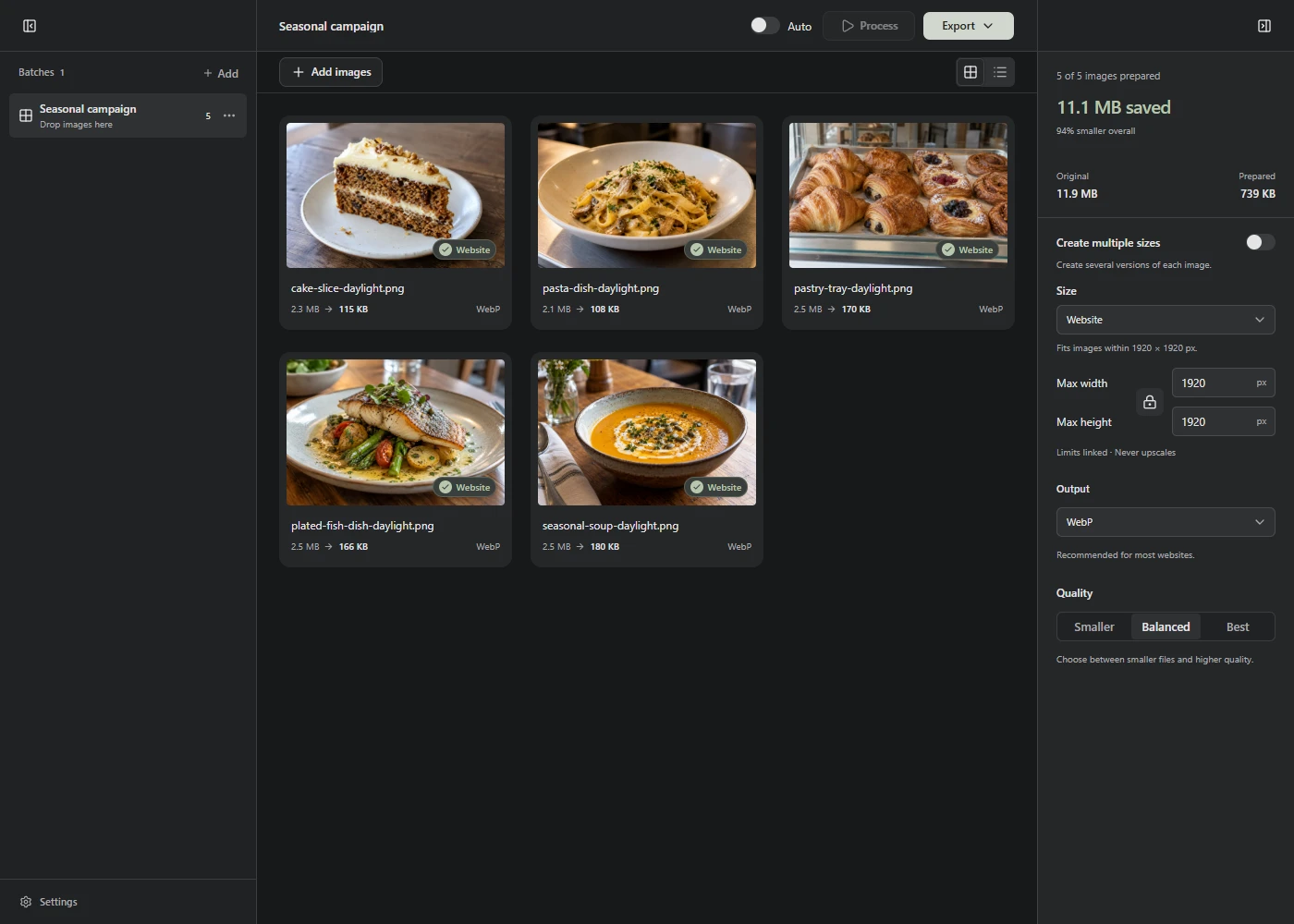
Add your images to Lumo, choose Process, then check the results before saving them. The default settings create WebP copies that fit within 1,920 × 1,920 pixels. Smaller images keep their dimensions.
Prepare a batch
- Choose Add images, drop files into a Batch, or paste a copied image. A Batch is a group of images that share the same settings.
- Check Size in the right sidebar. Website is the default. If you know the dimensions your page needs, set Max width and Max height instead.
- Open Output if you need a different format. Keep WebP if your website accepts it. Choose JPEG when your publishing tool requires it and the image has no transparency.
- Choose Process. Adding files and changing settings don’t start processing unless you turn on Auto-process.
The sidebar settings apply to every photo in the Batch. Create another Batch with Add → Batch when some images need different settings.
Check the result that matters
Open an image to compare its original and prepared versions. Look at small text, faces, fine texture, and edges. Check it at the size people will see on your website, too.
If the result looks too soft, try a higher Quality setting or larger dimensions and choose Process again. If it looks good but the file is still too large, follow the file-size guide.
Some prepared files are larger than their originals. Lumo shows that result. You can try another format or keep the original if it already suits your page.
Save and use the copies
Choose Export, then Download image or Download ZIP. You can also use Save to folder… in a browser that supports folder access.
Upload the prepared copies to your website or content management system. Lumo processes images on your device and keeps the originals unchanged.
These size and format settings apply to photos and other pixel-based images. SVG files follow a separate optimization step and remain SVG.