

Choose the image for the space at the top of your page, then prepare it for that layout. Check the subject on both wide and narrow screens. A smaller file won’t help if the mobile crop cuts off the important part.
Start with the layout
Find the widest space the image needs to fill. Check whether your website uses the whole photo or crops it to fit a fixed shape.
A landscape scene can work on a wide screen but lose its subject in a tall phone layout. If that happens, prepare a separate mobile crop in an editor, or change how your website positions the image. The built-in Responsive web set keeps the original shape; it doesn’t choose a new composition for mobile.
Prepare widths you can use
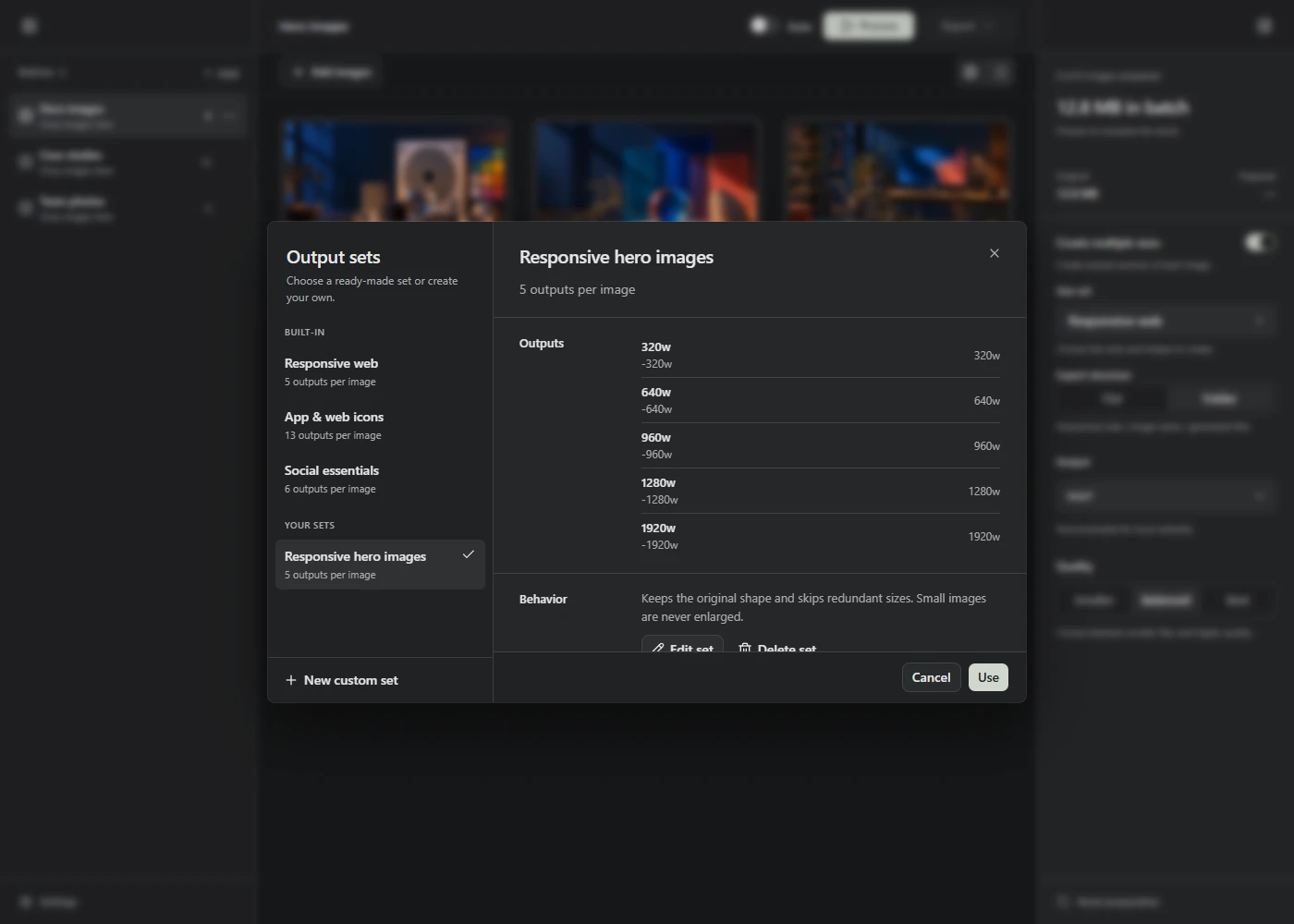
Add the source to Lumo and turn on Create multiple sizes. Choose Responsive web, or create a custom set using the widths your layout needs.
The built-in set goes up to 1,920 pixels wide. That isn’t a promise that it suits every full-width design. Check the result on your target screens and use a larger source and custom width when needed. Lumo doesn’t enlarge small originals.
Try WebP with Balanced quality first. Choose Process, then check texture, skies, gradients, and the subject’s edges. If the file is still large, compare a smaller width or another quality setting. Keep text in the web page where possible so it stays readable at different sizes.
Check the website after uploading
Choose Export to save the prepared files, then upload them to your website.
Connect the generated widths to your page’s responsive image handling. Uploading all the files alone doesn’t tell the browser which one to use. Follow the responsive image guide for that step.
The main image visible when a page opens should usually load immediately. If it’s your page’s Largest Contentful Paint image, the large element used to measure loading progress, don’t lazy-load it. Lazy loading waits to fetch an image until it’s near the visible area and can delay this image. Web.dev explains how to load the main image promptly.
Open the published page on a phone and a larger screen. Check the crop, text readability, and which file actually loads. Lumo prepares the files; those page settings belong in your website or publishing tool.