
Check your store’s image requirements first. Use the requested dimensions and format, then inspect the prepared photos for product detail and unwanted cropping before uploading them.
Group photos by their use
A product listing, detail page, and zoom view may need different sizes. Create a separate Batch for each job when the settings differ, or make a custom size set if you need several versions of every photo.
Keep the full originals. They give you room to prepare another crop or a larger view later.
Match the shape your store expects
For images that should keep their original shape, set Max width and Max height. These are limits, so a rectangular photo won’t become square when both are the same.
If the store needs a fixed crop:
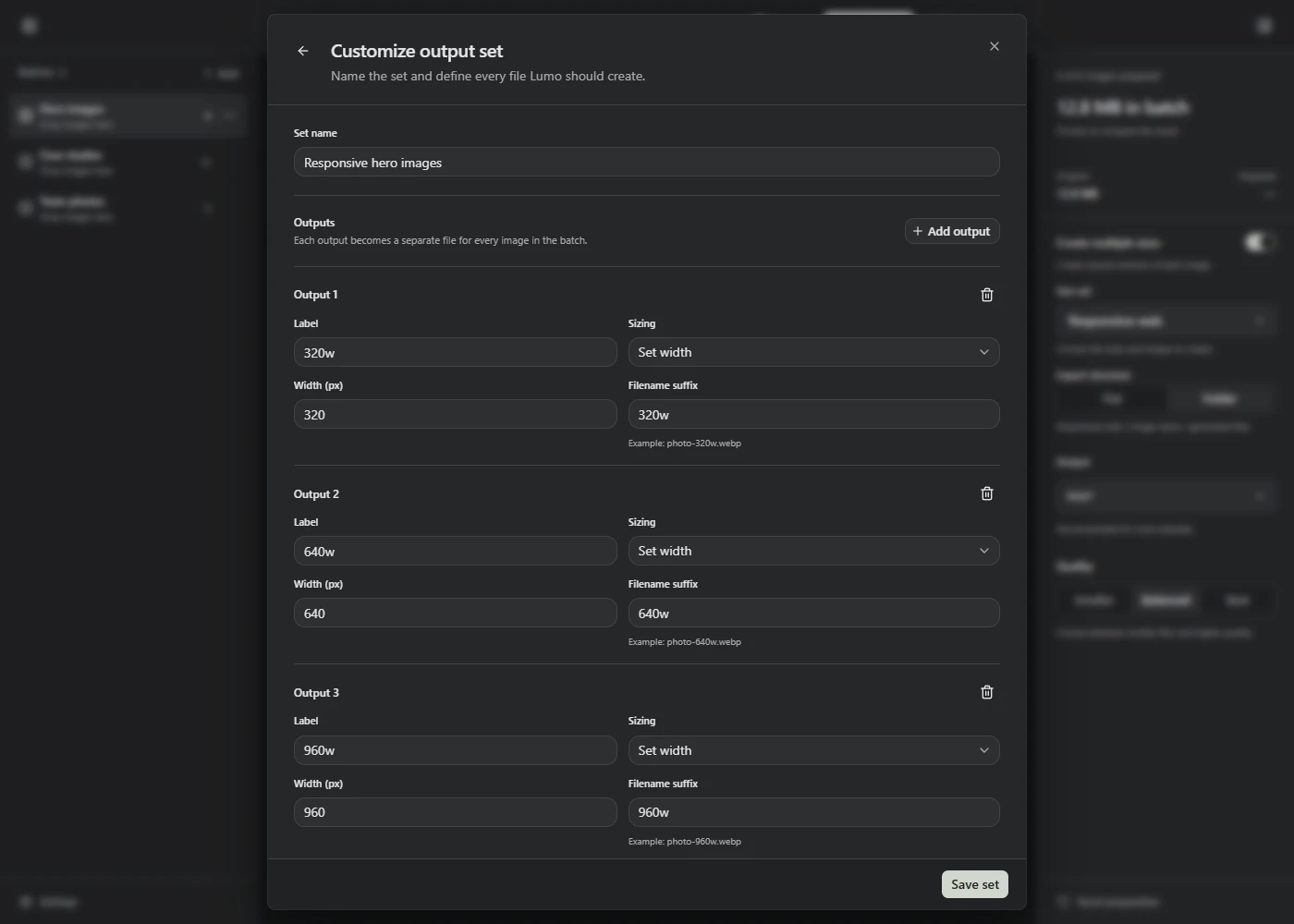
- Turn on Create multiple sizes and open the Size set picker.
- Choose New custom set and name it for the job.
- Give the output a label and filename suffix. Choose Fill and crop under Sizing, then enter the width and height your store needs.
- Choose Save set and apply it with Use.
- Choose Process and check every crop before exporting.
Lumo crops from the center and doesn’t enlarge small originals. If the product is near an edge or the source is too small, prepare a better source in an image editor. A saved size set can’t decide which part of the product must remain visible.
Check product detail
Start with Balanced quality in the format your store accepts. Check labels, stitching, texture, small parts, and any detail someone needs before buying. Try Best if compression removes useful detail.
Use WebP, AVIF, or PNG for photos with transparent backgrounds. JPEG can’t preserve transparency, and Lumo won’t add a background for you. If the store requires JPEG, add the required background in an editor first.
Choose Export when the results look right. After uploading, check the actual listing and product page on a phone and a larger screen. Your store may resize or crop the uploaded files again.