

Open a folder in Lumo, then choose Use with an agent… from that folder’s menu. Copy the instructions into your agent’s conversation. They tell the agent how that folder is set up and how to hand images back to you for preparation.
The agent can create or collect source images using its own tools. You choose Lumo’s settings and allow folder access. Lumo prepares copies on your device, and the agent checks the saved files before using them in your project.
Agree on the folder
Use a source folder both Lumo and the agent can reach. For a website project, a separate folder such as image-sources keeps originals apart from the images you publish.
Give the agent the actual path, or ask it to identify the folder from your project. For example, C:\Projects\hotel-site\image-sources describes a location; image-sources alone may match several folders. Lumo can read the folder you selected, but the browser doesn’t give it the full path to include in the instructions.
If the agent works on another computer or in a cloud environment without access to your files, agree on a manual exchange. Download its source images, prepare them in Lumo, then send back the saved results. The copied instructions don’t connect the agent to your device or give it control of Lumo.
Send the folder instructions
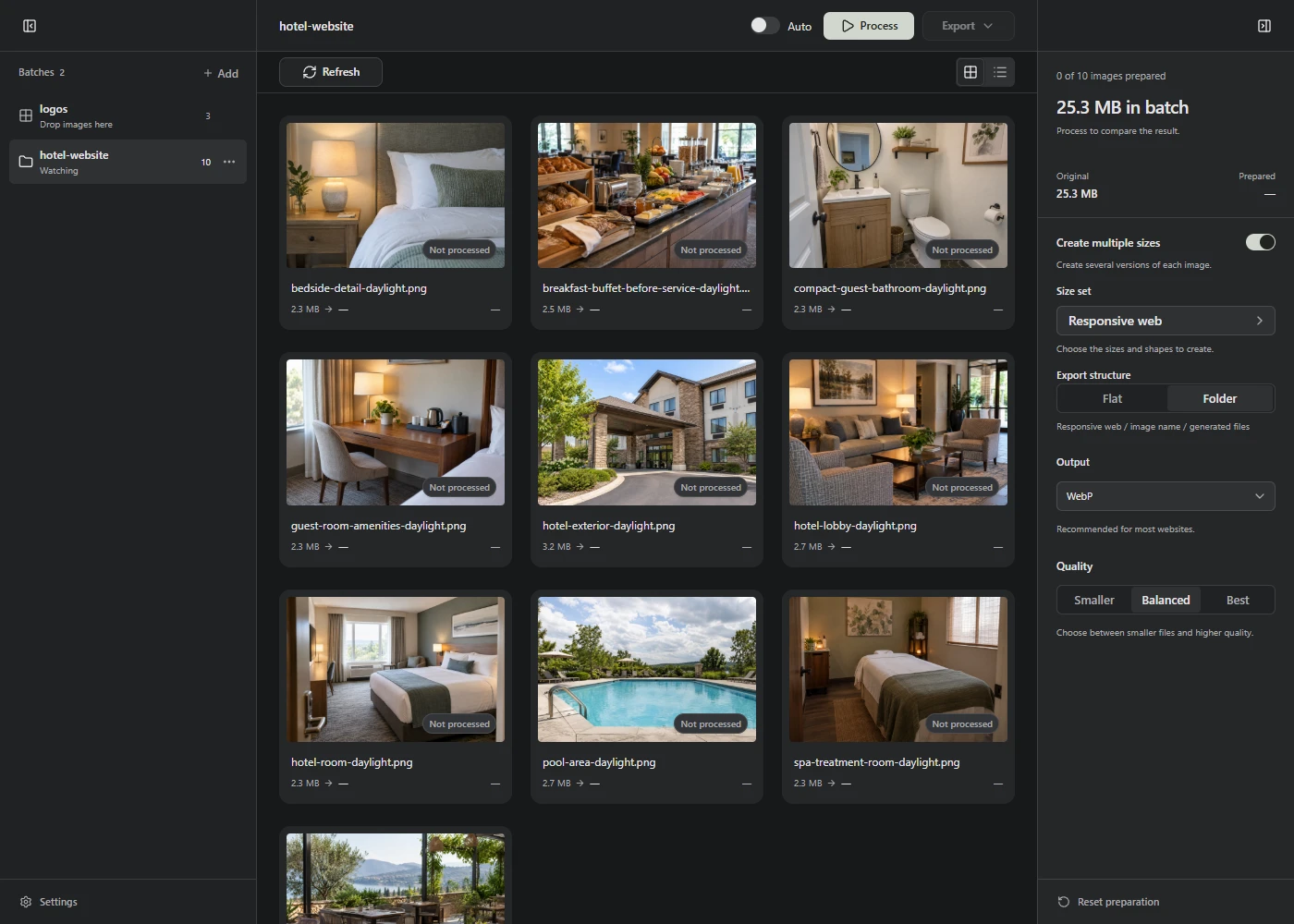
- Choose Add → Folder in Lumo and select the agreed source folder.
- Open the menu beside that folder’s name, then choose Use with an agent….
- Choose Copy instructions and paste them alongside your task in the agent’s conversation.
You can instead choose Download → Folder instructions (lumo.md) and attach or reference that file. If copying is unavailable, Lumo selects the instructions so you can copy them manually.
Tell the agent where the images will be used and any requirements you already know. For example:
Prepare these hotel photos for our room pages. Use the folder in the instructions. Keep the originals, check the crops, and put the finished images in the project’s normal image folder.
The instructions include the folder’s current size, format, quality, output sets, export structure, and Auto and watching status. Send fresh instructions after changing those settings or your saved output sets. An old copy can’t tell the agent what changed in Lumo.
Check the settings together
Ask the agent whether the folder’s current settings fit the job. It can recommend exact sizes or an output set. You make those changes in Lumo’s right sidebar, then send updated instructions.
Those settings apply to every image in the folder, including future arrivals. Use separate folders when different groups need different settings. For a set with several sizes or crops, follow the output sets guide.
Prepare the agent’s images
Ask the agent to save finished source images directly in the agreed folder, using a new filename for each revision. Watching ignores subfolders and existing filenames. If a source was overwritten, choose Refresh, then Process to prepare the change.
Return to Lumo so it can find the new files. Watching pauses while its tab is hidden or closed.
- With Auto-process & save on, Lumo prepares the images and saves copies to
optimizedinside the source folder. - With Auto off, choose Process, check the results, then Save to optimized or your agreed manual destination. Tell the agent when saving has finished.
If you previously chose another export folder, confirm its exact path with the agent. That manual destination doesn’t change where automatic saving goes. See automatic processing for permission and retry steps.
Let the agent check the saved files
Ask the agent to check the actual output folder for the new files before adding them to your project. It should match the results to the source revisions and check their dimensions, format, crops, quality, and any missing sizes.
Filenames may contain -web, size labels, or numbers added to avoid replacing an existing file. With Export structure → Folder, results sit in nested folders. An old image or an existing optimized folder doesn’t prove the latest save finished.
After checking the results, the agent can place them in your project’s normal image folder and update the references that use them.
Keep the instructions for future tasks
The same dialog offers Download → Download SKILL.md. This is a reusable instruction file for agents that support skills. Save it as lumo-images/SKILL.md in your agent’s skill library, following that tool’s setup instructions.
The skill explains the workflow and asks for fresh folder instructions for each task. It doesn’t store your folder paths or settings, generate images, or operate Lumo by itself.