

Turn on Auto in the top bar to process waiting images and new additions without choosing Process each time. In a file batch, you still export the results yourself. In a folder, Auto-process & save also saves copies into optimized.
Check the settings in the right sidebar before switching it on. Auto uses those settings for the whole batch or folder.
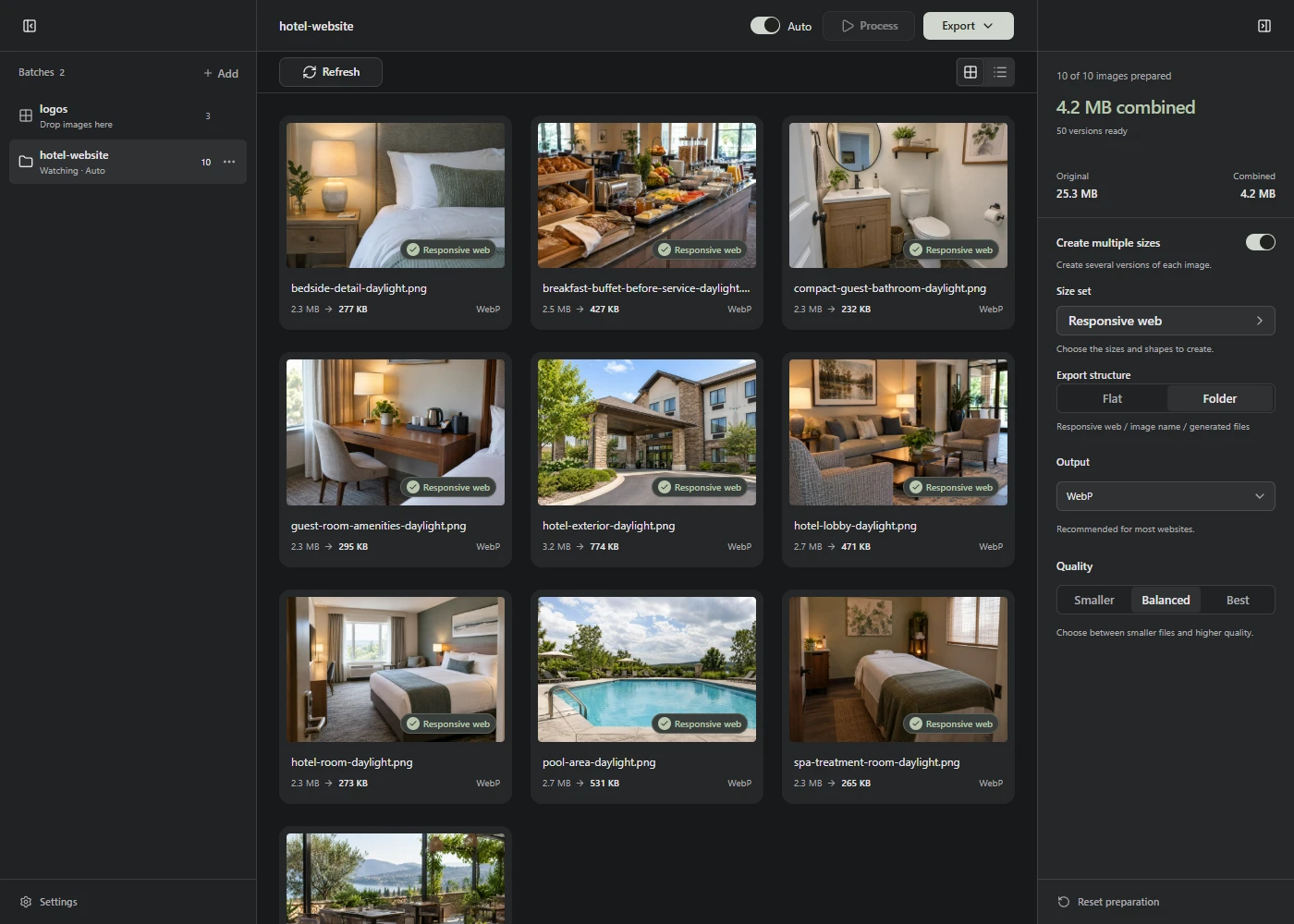
Auto in a file batch
- Select your batch in the sidebar.
- Check its size, format, and quality settings.
- Turn on Auto-process in the top bar. On narrower screens, the label is Auto.
- Add images as you need them. Lumo processes them using the batch’s settings.
- Check the results, then choose Export to download them or save them to a folder.
Auto-process doesn’t save files from a batch automatically. The results remain in Lumo until you export them.
Auto in a folder
Select an open folder and turn on Auto-process & save. Allow write access when the browser asks. If access is denied, the switch stays off.
Lumo processes waiting images and saves their prepared copies to the folder’s optimized subfolder. New filenames found by watching use the same settings. Keep watching enabled if you want those arrivals to appear automatically.
Automatic saving always uses optimized. A destination you chose for a manual export doesn’t change that. Export structure controls whether the copies stay together or sit inside output-set and source-image folders.
Watch the progress through processing and saving. An image being prepared doesn’t mean its copy has finished saving. Wait for the saved confirmation before closing Lumo.
Changing settings while Auto is on
A change to size, format, quality, or the active output set can make existing results need processing again. With Auto on, Lumo starts that work for you. The preparation settings guide explains which controls apply to each image type.
In a folder, the new results are saved as new copies. Older exports stay on disk, and names get numbers when needed. Turning Auto off and back on doesn’t save another copy of a result Lumo already recorded as saved.
If you overwrite a source file outside Lumo, choose Refresh, then Process for the changed image. Watching only discovers new filenames, and Refresh leaves changed files waiting for Process even when Auto is on.
Pausing and returning
Turn Auto off to stop pending processing. In a folder, this also cancels an automatic save that’s in progress where possible. Completed results and files already saved stay available.
Pause watching is different: it stops the folder from finding new images, but doesn’t cancel processing already in progress.
Keep Lumo open and visible for folder automation. Watching and new automatic saves pause while its tab is hidden. Closing Lumo stops the work. When you reopen a saved session, Auto and watching start paused; turn them on again when you’re ready.
When something needs attention
- Allow access: give Lumo permission to save to the folder again.
- Retry saving: check the save error, resolve the problem, then retry the unfinished outputs. Completed copies stay on disk.
- Couldn’t prepare: open that image’s error and retry it after fixing the problem. Auto doesn’t keep retrying failed images.
- Watching paused or Needs attention: open the folder’s menu and choose Resume watching. Check that its drive or location is still available.
Use Help for file limits, unsupported files, and download problems.