
Choose WebP, AVIF, or PNG under Output to keep transparent pixels. JPEG doesn’t support transparency. Lumo rejects transparent images for JPEG instead of silently filling the background.
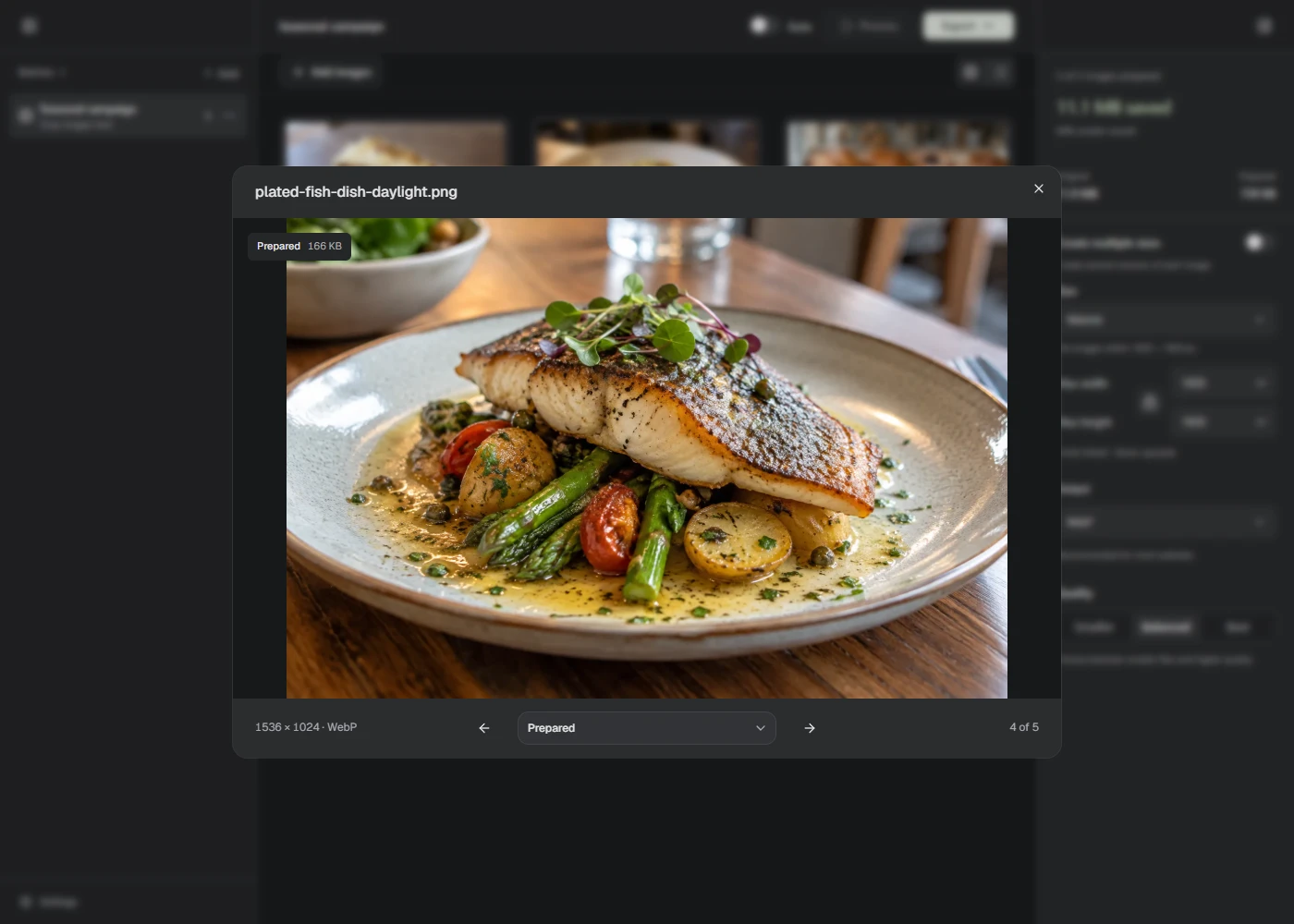
Prepare the image
- Add your transparent image to a Batch.
- Open Output and choose WebP, AVIF, or PNG.
- Set the size limits you need, then choose Process.
- Inspect the prepared result and Export it.
Start with PNG if you need lossless output. Try WebP or AVIF if file size matters, then check fine edges and soft shadows. PNG’s lossless encoding doesn’t undo any change from resizing.
The format setting applies to all photos in the Batch. If some files need JPEG and others need transparency, use separate Batches.
Check against the page background
Place the exported image on the background where it will be used. Look around hair, curved edges, shadows, and pale details. A result can look fine against one color but show a fringe against another.
If your site has light and dark appearances, check both. A white outline that was hidden on a white page may become visible on a dark one.
A white background isn’t transparency
Saving a normal photo as PNG or WebP won’t remove its background. Lumo keeps existing transparent pixels; it doesn’t remove backgrounds.
If your original already has a solid white background, remove that background in an editor before adding it to Lumo. If you need JPEG, do the reverse: add the desired solid background in an editor, then import that copy.
SVG files remain SVG when processed in Lumo. The photo output settings don’t turn an SVG into a transparent PNG or WebP.