
Reduce unnecessary dimensions first. Then compare the output format and quality. Changing one thing at a time makes it easier to see what helps and what loses too much detail.
Start with the dimensions
A camera-sized original may be much wider than the space it fills on your page. Set Max width and Max height to suit that space, then choose Process.
If you don’t know the dimensions yet, use Website as a starting point. It fits the image inside 1,920 × 1,920 pixels. For a small card, you can usually test a smaller limit. Use the image-size guide to choose from your actual layout.
Compare format and quality
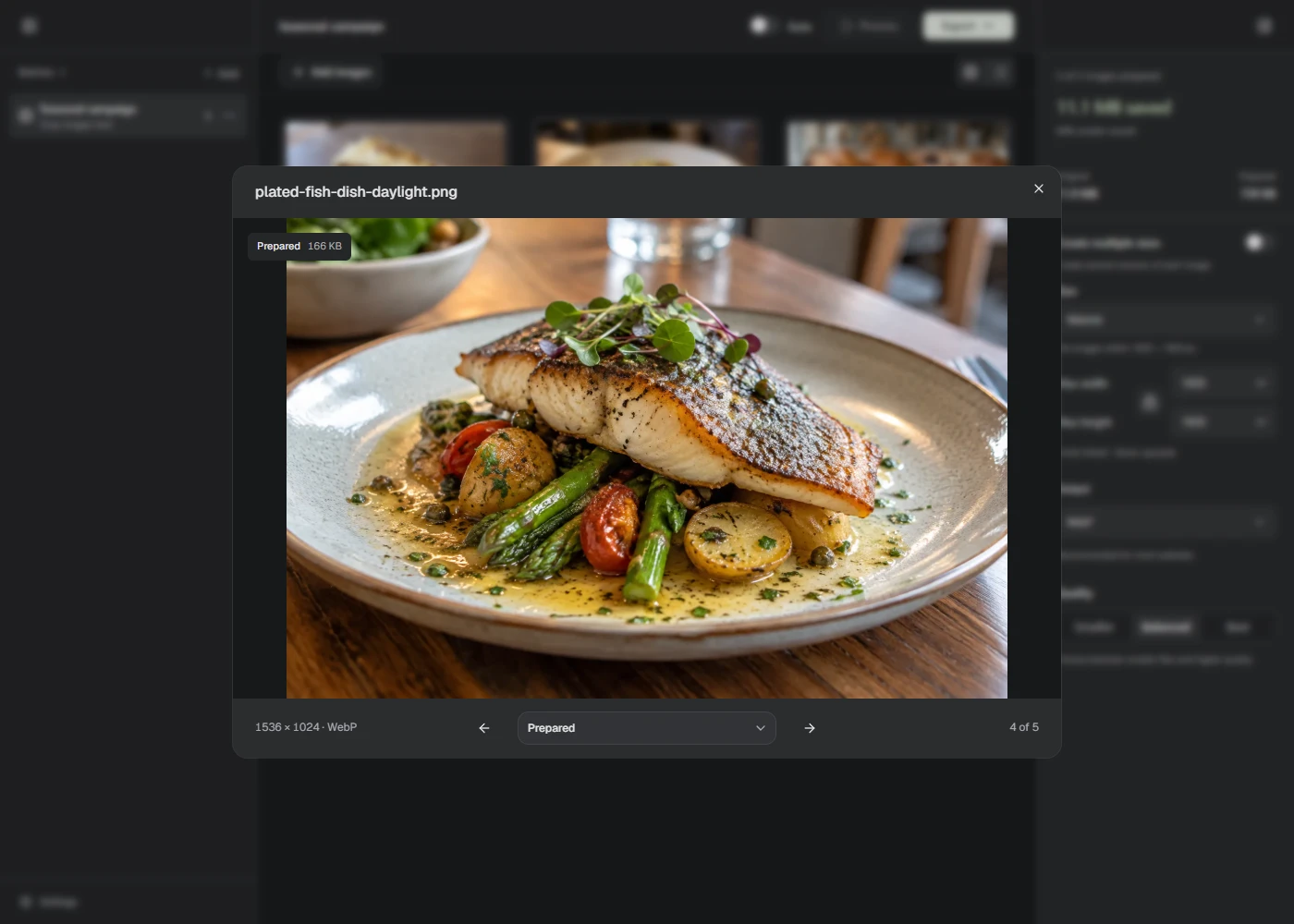
Open Output and try WebP with Balanced quality. Check the result before lowering quality further. You can also try AVIF if your website accepts it.
Choose Smaller when you want to test a lower quality setting. Choose Process again, then look for changes in faces, lettering, smooth gradients, and fine detail. If those changes are distracting, return to Balanced or try Best.
PNG uses lossless output. Its quality control won’t make the file smaller. Reduce the dimensions or try another format if the result is too large. Keep WebP, AVIF, or PNG when the image needs transparency.
Use your page as the final check
Preview the prepared image in the place it will be used. A thumbnail and a large product detail photo need different amounts of detail. If your publishing tool has a file-size limit, check the actual output against that limit.
There isn’t one file-size target that suits every image. Keep enough detail for the reader’s task, then test whether a smaller version still does that job.
When the file gets bigger
An already compressed original may not become smaller. Lumo reports larger results, too. Try another format, reduce the dimensions if the layout allows it, or keep the original.
Keep working from the original in Lumo instead of importing a compressed export for another pass. Choose Export once you’ve settled on a result.