
Add your HEIC photos to Lumo, choose JPEG or WebP under Output, then Process and Export. The conversion runs on your device. Your original HEIC files stay unchanged.
Convert a photo or a batch
- Choose Add images and select your HEIC or HEIF files.
- Wait for the previews. Lumo reads the photo locally to show it; this hasn’t created your final output yet.
- Open Output. Choose JPEG if your website or publishing tool asks for it. Keep WebP if it accepts WebP.
- Choose Website under Size, or set your own limits. Choose Original size if you need to keep the source dimensions.
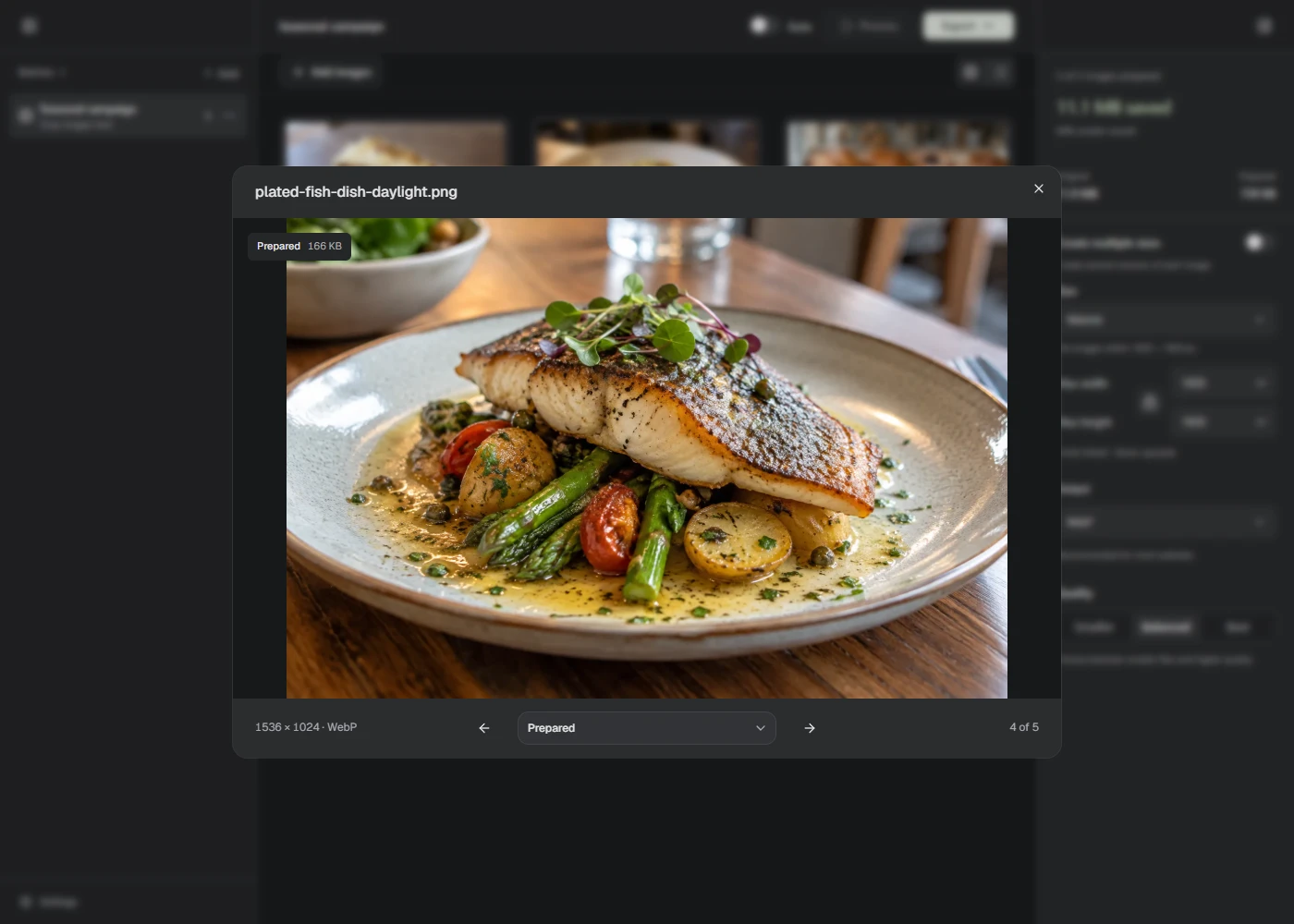
- Choose Process. Check the prepared photo, then use Export → Download image or Download ZIP.
All photos in a Batch use the same settings. For a large collection, split the files across Batches. Each Batch accepts up to 100 files and 100 MB in total.
What the conversion keeps
Lumo respects the supported file’s orientation and crop. It prepares the first still image, not a Live Photo video or every image in a collection.
The result uses 8-bit color and standard dynamic range. It won’t preserve the original HDR appearance, full color range, or extra camera data. Check the result before using it.
EXIF and GPS metadata aren’t copied to the prepared output. Keep the original if you need that information later.
If a photo won’t open
Lumo supports HEIC/HEIF photos encoded with HEVC. Other HEIF encodings aren’t supported. If a particular photo fails, export a JPEG from your photo app and add that to Lumo.
A photo must also fit the current import limits: 25 MB, 40 megapixels, and no more than 16,383 pixels on either side. A large phone photo can exceed the pixel limit even when its file size is small.
If a supported photo has transparent pixels, choose WebP or PNG. Lumo rejects transparent images for JPEG instead of adding a background.